
Open WordPress
Stories
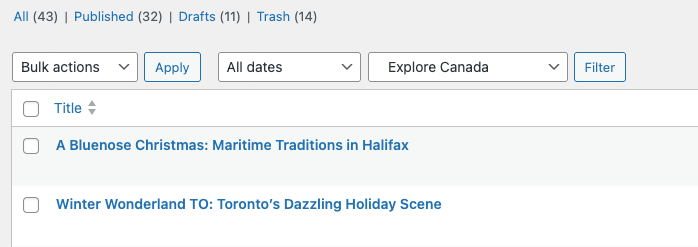
Filter the drop-down by Explore Canada, then click Filter.
Working on Draft Stories
Instructions:
- Look for stories in Draft status.
- Press COMMAND + Click on a story title to open it in a new tab.
- Go through each paragraph in the story and open any reference link provided.
- For every paragraph, search for an appropriate image.
- Only use free images or images from Wikimedia Commons.
How to Source Images
1. Instant Images
- Go to: Media → Instant Images.
- Search for an image related to the topic.
- Click the cog icon.
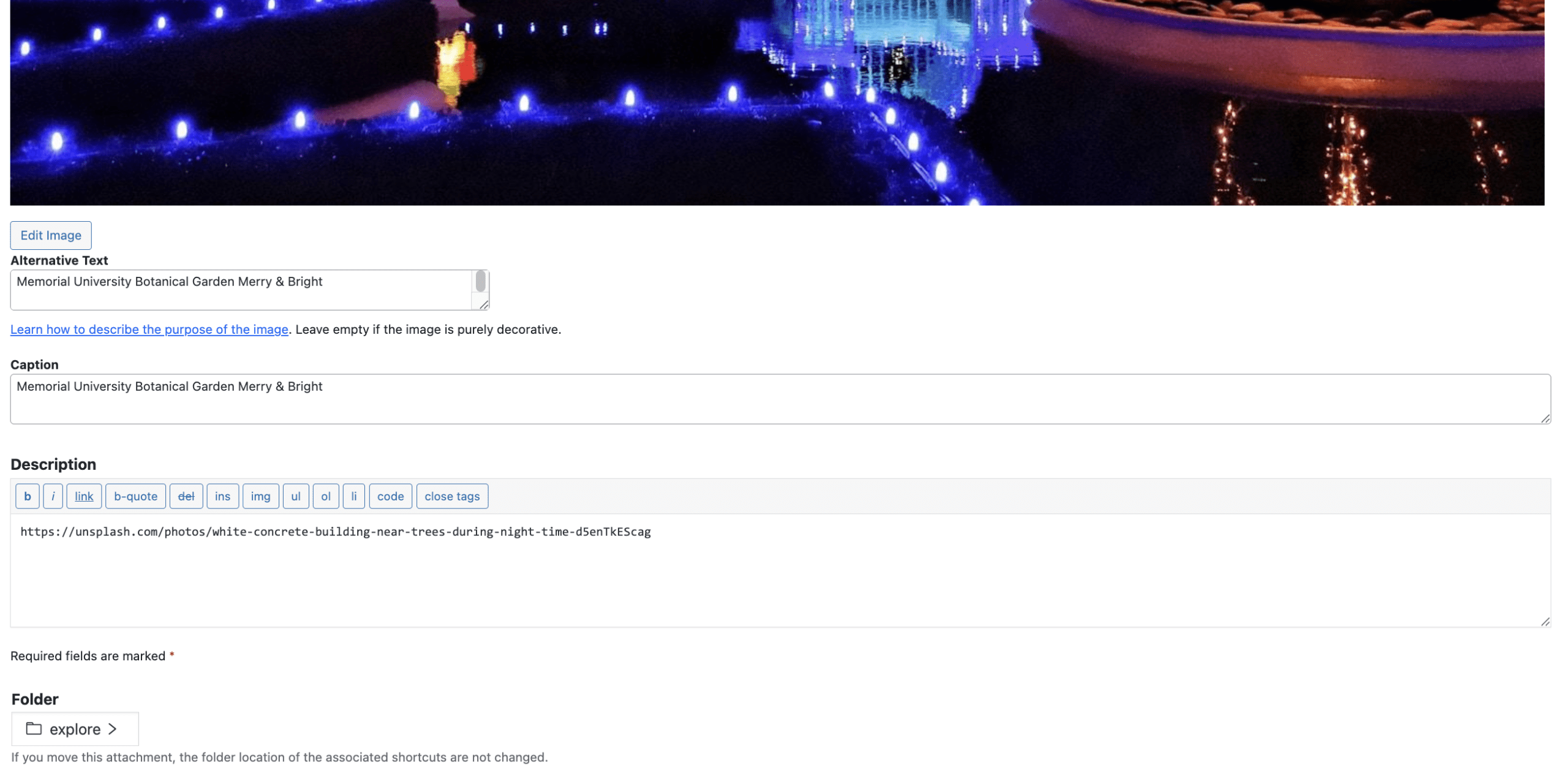
- Enter file, alt text and click on “Add Photo Attribution”.
- Click on update or save.
- Click on the image to download it to WordPress media library.
- Repeat until you have all required images.
2. Wikimedia Commons
https://commons.wikimedia.org/wiki/Category:Images
- Search for images.
- Right-click the image and save it to your desktop.
- Name the file based on the topic, e.g. winnipeg-topic.
- Copy the image address from the Wikimedia page and paste it into the Description field in WordPress.
Once You Have All Images
For downloaded images only:
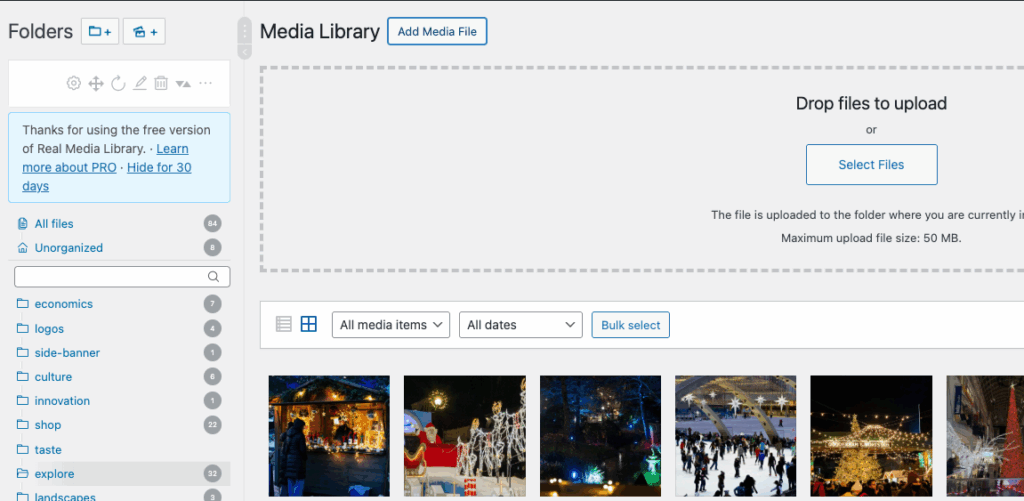
- Open the Media Manager (new tab): Media Library
- Click on the correct topic category (e.g. explore).
- Click Add New.
- Click Select Files and upload all images from your desktop.
Add Images to the Story
- Go back to the story tab.
- Place your cursor at the bottom of the page.
- Click the blue + button.
- Select Media → Image.
- Add all the images for that story at the bottom.
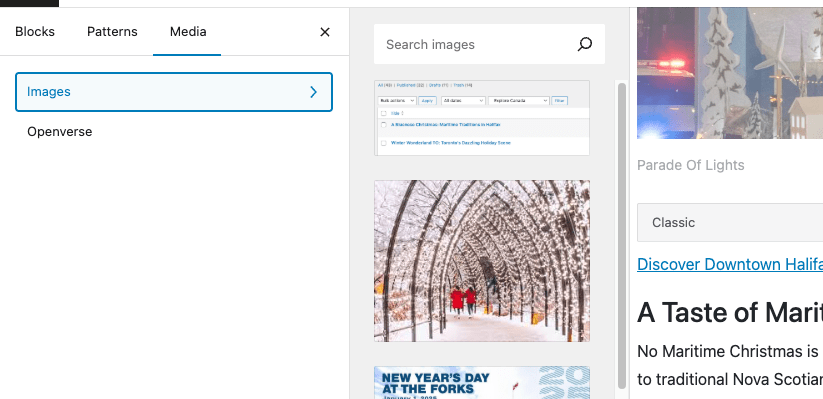
Insert new images above the existing old image. Do not delete the old one.
Retitle the Story:
- Add ⭐ (one star) if you found all required images.
- Add ⭐⭐⭐ (three stars) if you could not find all images.
Save Your Work
- Click the Save to Draft button.
- Close the tab to return to the list of stories.